
AI Photo Editor - BgMaster™
Smart AI DEVPhotography
4.6475.00 Reviews
- Version
- 1.3.5
- Installs
- 5.00M
- Age Rating
- Everyone
Screenshots


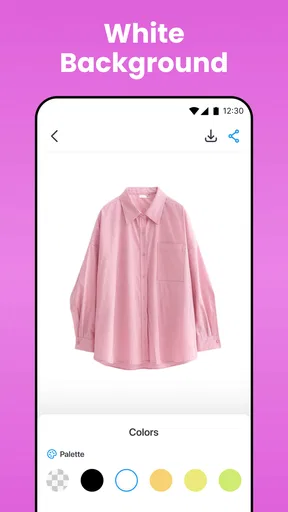

Our Review of AI Photo Editor - BgMaster™
 Analysis by Appyee
When I have a photo that is nearly right but one stray object keeps pulling my eye away from the subject, I want a quick fix rather than a full editing session. AI Photo Editor, Remove Object is built for that kind of small rescue: it gives me a way to clean up a picture and make a quick overall adjustment without having to learn a complicated desktop-style editor. I find it most useful when I know what is wrong with a shot and want to see whether a simple edit can make it shareable.
Where this editor fits into an everyday photo routine
This is a photography app from Smart AI DEV, aimed at people who want practical touch-ups rather than a large collection of specialist controls. It is free to install, with optional in-app purchases ranging from $4.99 to $99.99 per item. Its Everyone age rating makes it broadly accessible, while the 4.6 average from around 56,000 ratings and more than a million installs suggest that many people use it for straightforward photo work.
I would reach for it after taking a quick portrait, a travel snapshot, or a picture of an item I want to share. It is especially appealing when the main subject is already good and the distraction is clearly separate: a passerby near the edge of a street photo, for example, or a small object on a plain surface. In those situations, the edit has a defined purpose, and I can judge the result by asking whether the distraction still draws attention.
It is less suited to someone who wants a complete photography workflow with detailed layers, precise masking, color grading, and fine control over every adjustment. A dedicated editor is usually a better choice when the photo will be printed large, used professionally, or needs a complex composite. I see this app as a convenient repair stop, not a replacement for every tool a careful photographer might use.
First Impressions and Interface
Upon launching the app, I was greeted with a simple and intuitive interface. It’s like the app was designed with usability in mind, making it a breeze to navigate. The main screen offers a straightforward layout with options to either snap a new photo or upload one from your gallery. No unnecessary clutter, just the essentials to get you started on your editing journey.
Features That Stand Out
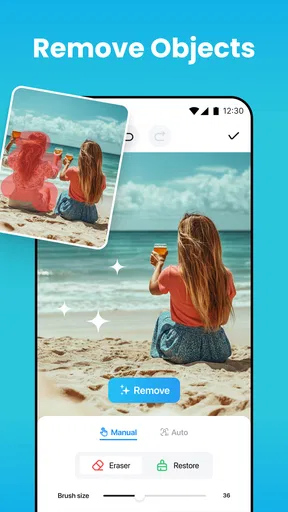
The core feature of the AI Photo Editor, Remove Object is, of course, its ability to remove unwanted elements from photos using AI technology. But there’s more to it than meets the eye. Let's dive into some of the standout features.
- Object Removal: The app uses advanced AI algorithms to identify and remove objects. I tested it on a variety of photos, from bustling cityscapes to serene landscapes, and the results were impressive. The app left no trace of the removed object, maintaining the integrity of the background.
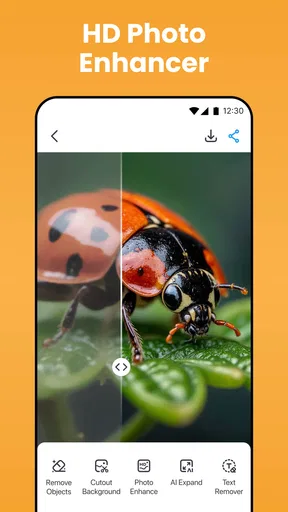
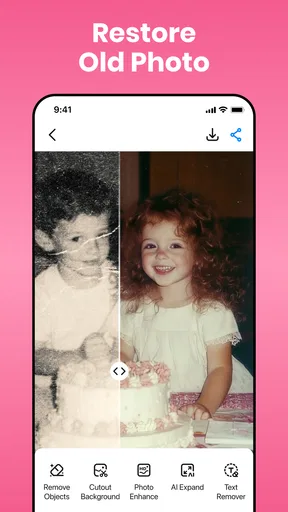
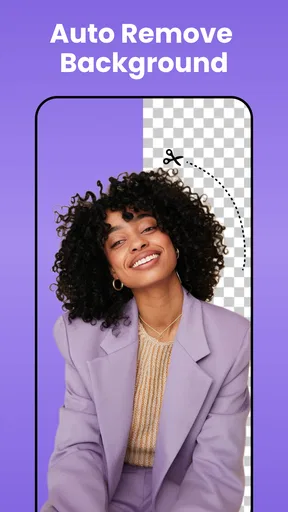
- Background Enhancements: After removing an object, the app offers options to enhance the background, allowing for a seamless blend. This feature is particularly useful if the removal leaves any awkward gaps or lighting inconsistencies.
- Easy-to-Use Tools: The app provides a range of editing tools that are user-friendly. Whether you’re a pro or a beginner, the learning curve is minimal, and you can get professional results with just a few taps.
A careful removal workflow gives better results
I get more dependable results when I begin with the cleanest version of the photo I have, rather than repeatedly editing a compressed copy that has already been shared. Before making a change, I look at what sits behind the unwanted object. A person crossing a plain wall is a much easier target than a person covering a face, a patterned railing, or an important edge of the main subject. The tool can fill a gap, but it cannot recover detail that the original image never showed.
For a small distraction, I would work conservatively and check the surrounding area after each edit. Removing too much at once can leave a larger blank patch for the app to reconstruct, making an otherwise simple correction look less natural. If the object is close to something I want to keep, I treat the boundary as the real challenge: the goal is not merely to erase the object, but to avoid taking a sliver of the subject with it.
A useful habit is to compare the edited image with the original at normal viewing size as well as close up. Zooming in can expose repeated textures or blurred edges, but judging only at high magnification can also make a minor imperfection seem more important than it will be on a phone screen. I decide based on where the image will actually be seen. A casual social post has a different tolerance from a photograph I plan to crop tightly or print.
Performance and Speed
One thing that really struck me was how zippy the app is. The processing time for removing objects is surprisingly fast, even for high-resolution images. You won’t find yourself waiting around, which is a big plus when you’re in the zone and want to keep the creative juices flowing.
The app also doesn’t hog your phone’s resources, so you can multitask without any noticeable slowdowns. This efficiency makes it a great companion for those quick edits on the go.
From edit to finished photo
My practical handoff is simple: I choose the picture, make the removal, inspect the filled area, then use the available enhancement option only if the revised background needs it. That order matters. If I brighten or otherwise adjust a photo before deciding where the repair works, I may end up evaluating a different-looking image and miss a rough patch. I prefer to settle the structural edit first and treat the finishing touch as optional.
For an everyday example, imagine taking a café-window portrait and noticing a bright sign or a stray item in the background. I would start with the original shot, remove only the clear distraction, and check that the window frame or the person’s outline still looks believable. Then I would decide whether a one-tap improvement helps the whole picture or makes the subject look too processed. If the repaired background still attracts attention, I would keep the original rather than force a result.
When I am done, I also consider what happens next: the picture may need to be cropped for a post, sent to a friend, or kept as a personal memory. A repair that looks convincing before cropping can become obvious if a tighter crop places the filled area near the center. I therefore check the composition at the likely final framing, not just in the editor’s initial view. This small check can save me from sharing an edit that only worked at one size.
Compatibility and Accessibility
Whether you’re team Android or iOS, AI Photo Editor, Remove Object has you covered. The app is available on both platforms, ensuring that a wide audience can enjoy its benefits. It’s also lightweight, meaning it won’t take up much space on your device — a big relief for those of us constantly battling storage issues.
For Android users, the current version is 1.2.5 and it requires Android 6.0 or later. That gives the app a broad reach across compatible Android devices. The store release date is May 11, 2024, but what matters more to me as a user is whether the editor suits the picture in front of me and the amount of control I need. Its uncomplicated approach is a benefit when speed matters, though a photographer accustomed to layers and manual retouching may find the simpler workflow limiting.
How it compares with other editing choices
Compared with a general-purpose photo editor, this app puts the cleanup task at the center. That focus can make it more approachable when I just want to remove a distraction and move on. A broad editor may offer more precise selection and a richer set of adjustments, but it can also ask me to spend longer choosing tools and tuning settings. For a quick correction on a casual picture, the focused approach is often the more comfortable one.
Compared with leaving the photo untouched, the app offers a useful middle ground: I can keep the original composition while trying to reduce one element that competes with the subject. But I would not use removal to rewrite a scene where the object is part of the story, or where changing it could mislead someone about what was photographed. For documentary, evidentiary, or otherwise sensitive images, preserving the unedited original is the better choice.
It also cannot make every difficult background easy. Repeating patterns, fine lines, hair, reflections, and objects that overlap the main subject all raise the stakes. In those cases, a manual editor can be worth the extra effort because it gives the user more control over boundaries and local detail. I would choose the simpler app when the target is isolated and the image is casual; I would switch tools when precision matters more than convenience.
Room for Improvement?
While the app is robust, no app is without its quirks. Occasionally, the AI might struggle with complex patterns in the background when an object is removed. It’s not a deal-breaker, but something to keep in mind if you’re aiming for pixel-perfect edits on intricate images.
Additionally, while the app offers a plethora of features for free, there are premium options that unlock even more advanced tools. Depending on your needs, this could be a worthwhile investment, but the free version is more than capable for everyday use.
I would try the free experience on the types of photos I actually edit before paying for an optional purchase. The in-app purchase range runs from $4.99 to $99.99 per item, so it makes sense to check what an offered upgrade includes and whether I would use it often enough to justify the cost. Someone who only cleans up an occasional holiday picture may have no reason to buy extra options, while a frequent editor may value additions that fit their routine.
There is also a judgment call around what counts as a successful edit. A quick automatic result can look convincing at a glance while leaving a smudge or an oddly repeated texture when inspected closely. I would not assume that every removal is ready to share without checking it. If a repair fails on the first attempt, I would reconsider the target or use another editor, rather than keep applying changes until the background looks less natural than the original.
Who will get the most from it
I think the app is a good match for casual photographers, social-media users, travelers, and anyone who wants to tidy a picture without learning a full editing suite. It is particularly handy when the distraction is small, the background is fairly simple, and the rest of the photo already works. The quick route from choosing an image to trying a correction is a real advantage when I am sorting pictures on my phone and do not want to move the job to a computer.
I would tell a friend to skip it if they need repeatable, pixel-level retouching, have to preserve every detail, or routinely work on complicated images. It is also not the right answer when removing an object would change the meaning of a scene. In those situations, a more controlled editor—or no edit at all—is the more responsible choice.
Final Thoughts
All things considered, AI Photo Editor, Remove Object is a top-notch app for anyone looking to clean up their photos with minimal fuss. Its user-friendly interface, powerful AI capabilities, and fast performance make it a standout choice in the photo editing landscape.
Whether you’re a casual photographer or a seasoned pro, this app has something to offer. So next time you’re out capturing moments, rest assured that any unwanted surprises can be swiftly and effectively dealt with. Happy editing!
Verdict
Strengths of AI Photo Editor - BgMaster™
- User-friendly interface enhances editing experience.
- Wide range of editing tools available.
- Quick removal of unwanted objects in photos.
- High-quality output maintains image resolution.
- Regular updates with new features.
Limitations of AI Photo Editor - BgMaster™
- Some features require a premium subscription.
- Occasional delays in processing images.
- Limited free version capabilities.
- High battery consumption during use.
- Requires internet for full functionality.
Other Releases by Smart AI DEV
View All
AI Photo Video Maker, Enhancer
Photography4.7

AI Home Design: Interior DecAI
Art & Design4.6

Logo Maker - AI Art Design
Art & Design4.4

Coin Identifier - Coin Finder
Tools4.4
Similar Picks in This Category
View All
Google Photos
Google LLC4.4

Gallery
Google LLC4.2

Picsart AI Photo Editor, Video
PicsArt, Inc.3.9

B612 AI Photo&Video Editor
SNOW Corporation4.1

BeautyPlus-Selfie Photo Editor
PIXOCIAL TECHNOLOGY (SINGAPORE) PTE. LTD.4.5

Remini - AI Photo Enhancer
Bending Spoons4.1
Frequently Asked Questions
What features does the AI Photo Editor, Remove Object app offer?
The AI Photo Editor, Remove Object app provides a variety of features including object removal, background change, filters, and retouching tools. It uses advanced AI algorithms to seamlessly edit photos, making it easy to remove unwanted elements from your images with just a few taps.
How user-friendly is the AI Photo Editor, Remove Object app?
The app is designed with a user-friendly interface suitable for both beginners and experienced users. It offers intuitive controls and easy navigation, ensuring that users can quickly learn how to use its features effectively. The app also provides tutorials and tips to enhance the editing experience.
Is the AI Photo Editor, Remove Object app free to use?
The app offers a free version with basic features, allowing users to explore its essential tools. However, for advanced features such as high-resolution exports and premium filters, users may need to purchase a subscription or make in-app purchases to unlock the full potential of the app.
What devices are compatible with the AI Photo Editor, Remove Object app?
The AI Photo Editor, Remove Object app is available for both Android and iOS devices. It requires a minimum operating system of Android 6.0 or iOS 11.0. Ensure your device meets these requirements to enjoy a smooth and efficient editing experience without compatibility issues.
How does the AI Photo Editor, Remove Object app ensure privacy and data security?
The app prioritizes user privacy by implementing robust data protection measures. It does not store photos on external servers and processes images locally on your device. Additionally, it complies with standard data protection regulations, ensuring that your personal information remains secure while using the app.
